
Top

Timeline

TIMELINE SHORTCODE

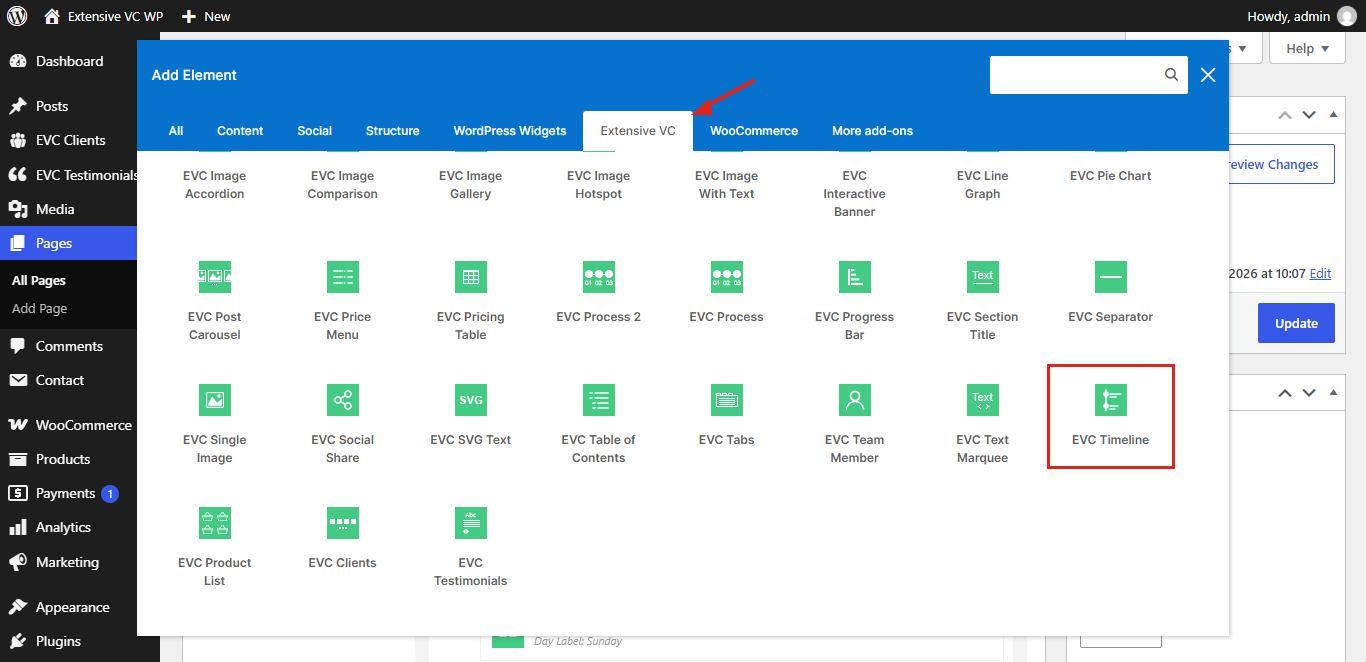
Timeline element is the one of shortcodes from the Infographic shortcode pack. It’s WordPress addon for premium WordPress plugin WPBakery page builder Visual Composer. Below you can see all variations of this shortcode with all admin options and functionalities.

Timeline – Alternating Layout
  1. October 2017
    WP Realize Extensive VC plugin - Image 1

    First Release

    Extensive VC is released on WordPress.org with classic, interactive, infographic and typography element packs.

  2. 2018
    WP Realize Extensive VC plugin - Image 9

    New Elements

    Blog List, Product List, Line Graph, Post Carousel and many other elements are added.

  3. October 2026

    Version 2.0

    Security release with PHP 8 compatibility, SVG icons and new build tools.

  4. October 2026

    Version 2.1

    Team Member, Countdown, Image Comparison and Accordion elements, responsive options and faster loading.

  5. October 2026
    WP Realize Extensive VC plugin - Full Screen Sections shortcode

    Version 2.2

    Business Hours, Price Menu, Image Accordion, Social Share, Table of Contents, Image Hotspot and Timeline elements.

Timeline – Line On The Left And On The Right
  1. Step 1

    Install WPBakery

    Install and activate WPBakery page builder plugin.

  2. Step 2

    Install Extensive VC

    Find Extensive VC in WordPress plugins directory.

  3. Step 3

    Add Elements

    Open Extensive VC tab in add element window.

  4. Step 4

    Publish

    Publish your page and enjoy.

  1. Morning

    Planning

    Line on the right side with custom colors.

  2. Afternoon

    Building

    Appear animation is disabled for this timeline.

  3. Evening

    Launch

    Content of each item is added in page builder editor.

ADMIN OPTIONS

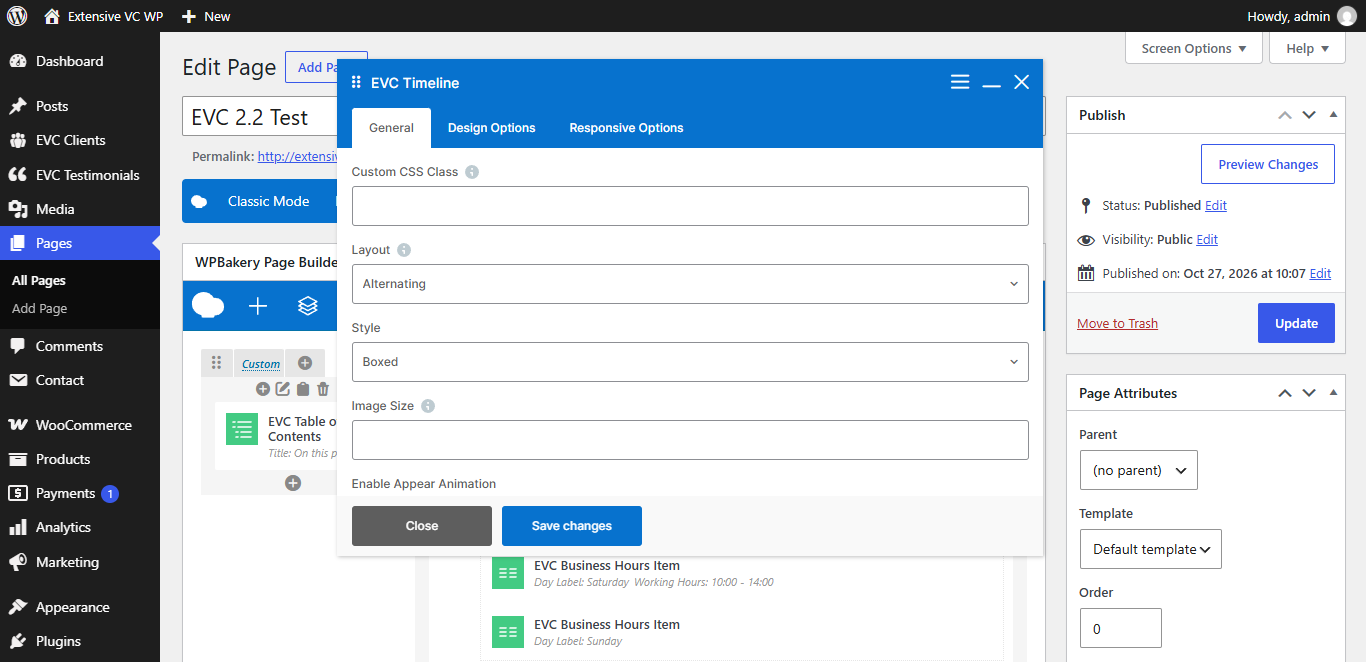
– Custom CSS Class

Style particular content element differently – add a class name and refer to it in custom CSS

– Layout
  • Alternating
  • Line On The Left
  • Line On The Right

Alternating layout is displayed with line on the left on mobile devices

– Style
  • Boxed
  • Simple
– Image Size

Fill your image size (thumbnail, medium, large, full or any registered image size) or enter image size in pixels: 200×100 (width x height). Default value is large

– Enable Appear Animation
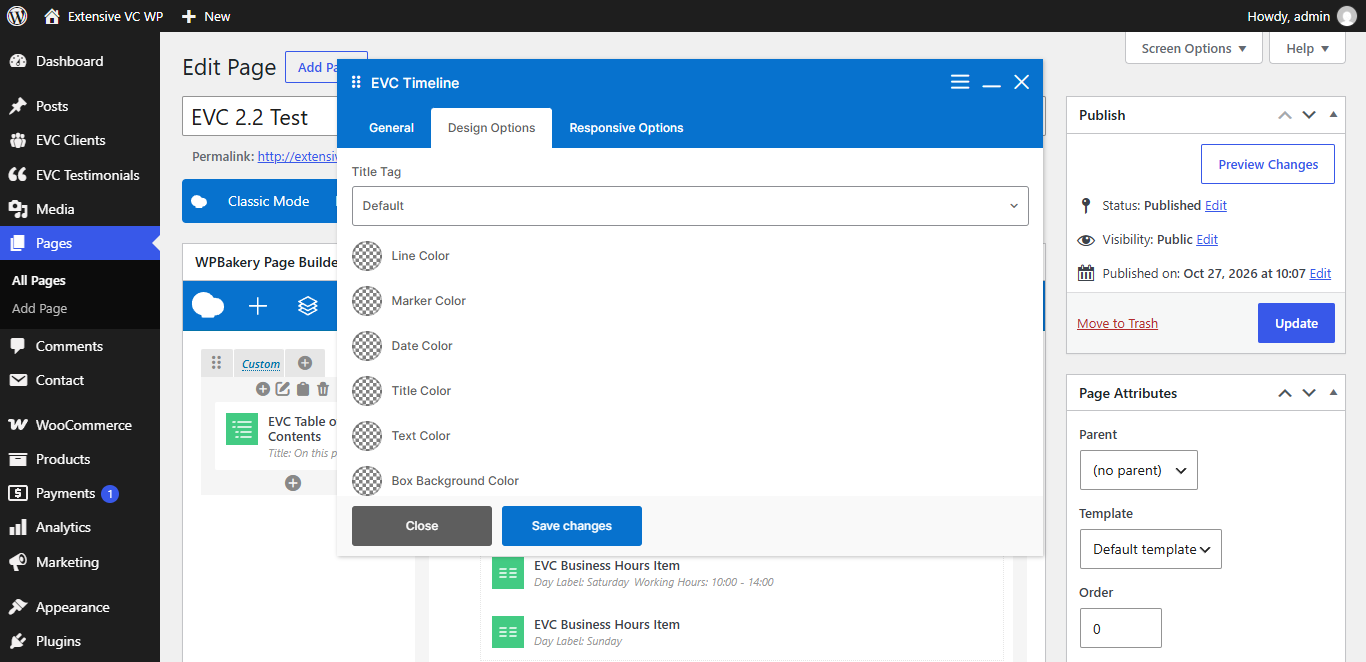
– Title Tag
  • h1
  • h2
  • h3
  • h4
  • h5
  • h6
  • p
– Line Color
– Marker Color
– Date Color
– Title Color
– Text Color
– Box Background Color
– Space Between Items (px)
– Hide on Desktop
– Hide on Tablet (up to 1024px)
– Hide on Mobile (up to 680px)
– Margin on Desktop / Tablet / Mobile

Insert margin in format: top right bottom left (e.g. 10px 0 20px 0)

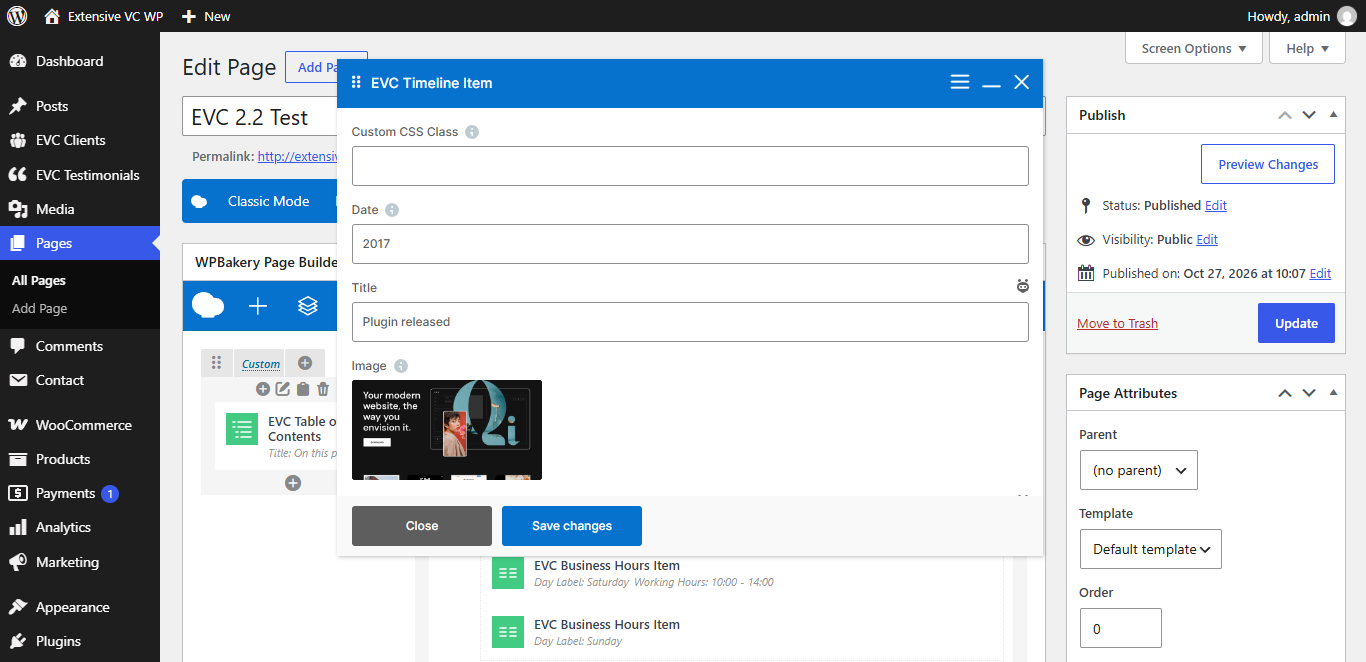
Timeline Item
– Date

E.g. 2026 or March 2026

– Title
– Image
– Content